

You open your store one morning and something is wrong. The same ring shows up three times. The same necklace has two prices. Your product count jumped by hundreds, and you did not add a single item.
If you pull products from a supplier’s feed or API, this is a common headache. The good news is that it has clear causes, and you can fix it.
This guide is written for store owners, not coders. We will explain why duplicates happen, how to find them, how to clean them up safely, and how to stop them from coming back. We will also share a short checklist you can hand to your developer.
Why does my WooCommerce store keep making duplicate products?
Your store makes duplicates when the sync cannot tell that a product already exists. It then creates a new one instead of updating the old one. This usually happens because the sync has no stable ID to match, or because the match rule is weak.
Think of a name tag at a party. If every guest wears a clear tag, the host knows who has arrived. If tags are missing, the host thinks each visit is a new guest. A sync needs a name tag for every product. That tag is called a unique ID. When it is missing, changed, or ignored, you get repeats. One guide on import problems lists the same core causes: missing unique IDs, wrong column mapping, and an update setting that is turned off.
What are the most common causes of duplicates?
The most common causes are matching on product names, changing SKUs, running two syncs at once, old imports that never saved an ID, and supplier items that change shape. Any one of these can flood your store with copies.
Let us go through each one.
- Matching on the title. Suppliers fix typos and rewrite titles. If your sync matches by title, a small edit makes the item look new.
- SKUs that change. Some suppliers change SKU formats, add prefixes, or switch between upper and lower case. Some systems treat “ab-100” and “AB-100” as different codes. Extra spaces can cause the same problem.
- No stored supplier ID. If your old products were added by hand or by a different tool, the new sync has no saved ID to compare. It cannot see them, so it makes new ones. One sync plugin’s own help page says this directly: products added a different way will not be recognized.
- Two syncs running at once. If one run is still going when the next one starts, both may create the same new item.
- The update option is off. Many import tools have a setting to update existing products instead of creating new ones. If that setting is off, every run adds more.
- Variations treated as separate products. This one hits jewelry stores hard. We cover it in its own section below.
- Old drafts and trashed items. Sometimes the old item sits in the trash or in draft. The sync skips it and creates a fresh one.
How do I find duplicate products in my store?
Sort your product list by SKU and by name, then look for repeats. For large stores, export your products to a spreadsheet and use a pivot table or a “find duplicates” tool. Group by SKU, supplier ID, and title to see which items appear more than once.
Here are simple steps:
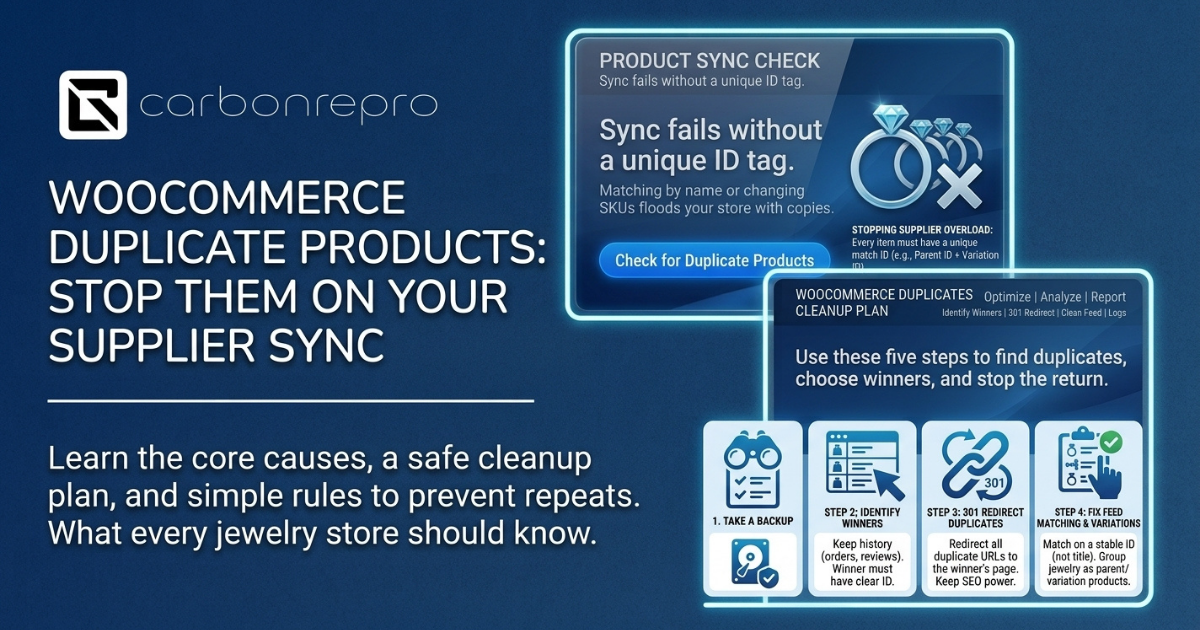
- Take a backup first. Always do this before you change anything.
- Export your products. Use the WooCommerce export tool or an export plugin.
- Open the file in a spreadsheet. Sort by SKU first.
- Mark repeats. Use a formula or the built-in duplicate highlighter.
- Check titles too. Some duplicates have a different SKU but the same title and images.
- Count by supplier ID. If your sync saves one, this is the best check.
For each duplicate group, note which item has sales, which has reviews, and which has the best page address.
Which duplicate should I keep?
Keep the one with the most history. That usually means the product with past orders, reviews, and traffic. If none of them have history, keep the oldest page address, or the one the supplier ID points to, and remove the rest.
Use this order when you are not sure:
- First, keep any product tied to real orders.
- Second, keep the one with reviews.
- Third, keep the page that already gets visits from Google.
- Fourth, keep the one with the cleanest data.
Pick a “winner” for each group, then move the good details onto it. That might mean copying a better description or image over.
How do I remove duplicates without hurting my SEO?
Do not just delete them. Each duplicate may already have a page address that Google knows. Delete it and that address becomes a dead end. Instead, redirect each duplicate to the winner with a permanent 301 redirect, then remove the extra product.
A 301 redirect tells browsers and Google that a page moved for good. Visitors land on the right page. And Google can pass much of the old page’s value to the new one.
Here is a safe process:
- Choose your winner for each group.
- Set up a 301 redirect from each duplicate address to the winner.
- Test a few redirects by hand.
- Move the duplicate to the trash, then delete it after your checks.
- Update your sitemap so it lists only live pages.
- Watch Google Search Console for new errors.
If duplicates are also stealing traffic from each other, this cleanup can help your rankings too. Two pages for the same ring fight each other. One strong page does better. Our guide on technical SEO explains more about fixing site problems like this.
If you are not sure about redirects, it is fine to ask for help. Our WordPress website design team works with WooCommerce stores every day.
What is the best unique ID to match on?
The best match key is a stable supplier ID that never changes, saved on each product. Use the SKU as a second check. Do not match on titles. A stable ID lets the sync find the right product every time, even when names or prices change.
Here is the order we suggest:
- Supplier item ID. Save it in a custom field on each product when you first import it.
- SKU. Clean it first. Trim spaces and use one case.
- Other codes, such as a barcode, when the supplier offers them.
Never use the title as the main key. Titles change, and two different rings can share one name.
Also decide what happens when no match is found. The safest choice is to create the product as a draft, log it, and review it. This stops a bad feed from pushing hundreds of live items at once.
How do jewelry stores handle ring sizes, metals, and stones?
Jewelry items often come in many versions: sizes, metals, and stone options. If the supplier sends each version as its own item, your store may create many separate products. The fix is to group them under one parent product as variations.
Here is an example. A ring comes in sizes 5 to 9 and in yellow, white, and rose gold. That can be 15 versions. If your sync treats each as a new product, you end up with 15 pages for one ring. That hurts shoppers and search.
To fix it:
- Find the field that tells you which items belong together. Suppliers often call it a parent ID or style number.
- Create one variable product for each parent.
- Add each size and metal as a variation of that parent.
- Match each variation by its own stable ID.
This also helps your ads. Product feeds work better when variations are clean. If you run Google Shopping, messy variations can cause price errors. You can read more in our guide to Merchant Center disapprovals for jewelry stores.
If you run a jewelry store and want a site built to handle this well, see our web design for jewelers page.
Why does my sync run twice or overlap?
WordPress runs scheduled tasks through a system called WP-Cron, which only fires when someone visits your site. On quiet sites, tasks can bunch up or run late. On busy ones, two runs can start close together. A lock and a real server schedule fix this.
A “lock” is a simple rule: do not start a new sync until the last one is done. Think of a bathroom door. One person goes in at a time.
Ask your developer to add these:
- A lock. The sync checks for a running job before it starts.
- A server cron job. Some plugin guides suggest a real server task that triggers WordPress every few minutes, so timing does not depend on traffic.
- A time limit. If a run gets stuck, it stops and logs the error.
Without these, slow runs and overlaps can create copies, even when your match rules are good.
Should I use a plugin or a custom sync?
A plugin is faster to set up and works for many stores. A custom sync fits better when your supplier has an unusual feed, your catalog is large, or you need strict rules. Start with the simplest tool that can match on a stable ID.
Plugins fit well when your supplier feed is common, your catalog is small, and you only need basics like price and stock. A custom build fits better with thousands of items, many variations, special pricing rules, or a need for logs and safe rollbacks. Whichever you pick, check that it can update existing products, match on a saved ID, and create new items as drafts. If you want a tailored setup, our custom web application and automation services cover builds like this.
What should I test before running a full sync?
Test on a staging copy of your site first. Run a small batch of ten to fifty products. Check for duplicates, wrong prices, and broken variations. Only then run the full sync. Always keep a fresh backup before each major run.
Use this short checklist:
- Back up your store. Database and files.
- Use a staging site. A test copy, not your live store.
- Run a small batch. A few dozen items is plenty.
- Run the same batch again. Nothing new should appear the second time. This is the best duplicate test there is.
- Check variations. Open a few rings and look at sizes and prices.
- Read the log. It should show “updated” for old items and “created” only for truly new ones.
- Go live in steps. Start with one category, then add more.
Step four is the one most people skip. If the second run creates new items, your matching is broken. Fix it before you go any further.
How do I stop duplicates from coming back?
Save a stable ID on every product, match on that ID first, run one sync at a time, create unknown items as drafts, and keep logs. Then check your product count after each run. A sudden jump in count is the first warning sign.
A few habits that help:
- Watch your product count. Write it down each week. A big jump means trouble.
- Review new drafts before you publish them.
- Log every run. A simple log shows what was created, updated, or skipped.
- Do not edit synced fields by hand. Store custom text in a field the sync does not touch.
It also helps to keep your store’s overall health in check. Duplicates are often one sign of a wider setup problem. If you are choosing a platform or thinking of switching, our post on Shopify vs WooCommerce for small business may help.
When should I ask a developer for help?
Ask for help if duplicates return after you fix the settings, if your catalog has thousands of items, or if you are unsure how to set up redirects safely. A developer can add locks, logs, and safe matching rules in a short project.
Give your developer this list:
- Which tool or plugin runs the sync
- How often it runs
- Which field it uses to match products
- A sample of ten duplicate groups
- Your backup and staging setup
With that, they can find the problem fast. If you would like help with a WooCommerce store, see our ecommerce web design page or contact our team.
Key takeaways
- WooCommerce duplicate products appear when your sync cannot match an item to an existing one.
- Match on a stable supplier ID first, then a clean SKU. Never match on titles alone.
- Keep the duplicate with the orders, reviews, and traffic, and 301 redirect the rest.
- Group jewelry sizes and metals as variations under one parent product.
- Stop overlapping runs with a lock and a real scheduled task.
- Test on staging, and run the same batch twice before going live.



 Powered by